
Dogear - My Cricut Woes
My Dogear project is software that I use to create one-of-a-kind generative art bookmarks. You can read about the whole project at Dogear Bookmarks
The project centered around the Cricut where I used it as a pen plotter, and a precise drag knife to cut my algorithmic designs. I wrote software to generate 130 unique bookmarks.
The hardware seems well made, and conceptually it’s a fantastic tool that was central to my ability to carry out the project. However, the software that comes with it is terrible, and treats you like a revenue stream. I’d like to tell you about all the ways I found that the Cricut Design Studio is bad.
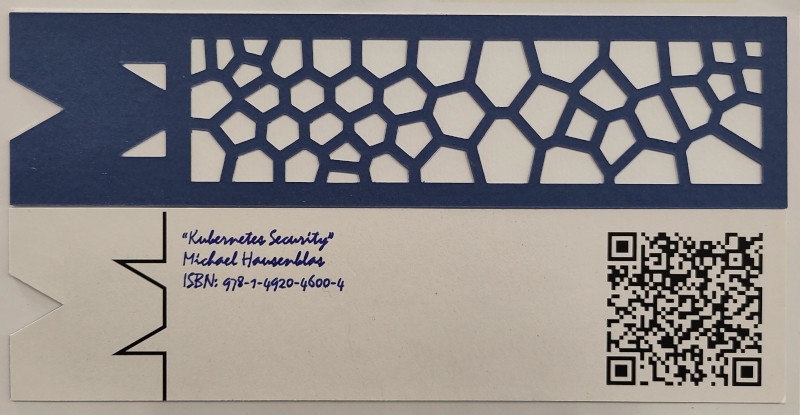
First - a picture of what I made, then right on to the complaining!
Ads
In order to use the hardware, you have no choice but to use the “Cricut Design Space” software which relentlessly pushes a subscription and tries to sell me things. To cut a design I get:
- a popup on opening the software with a very in-my-face “offer”
- a front page of things they want to sell me
- a sidebar I need to collapse full of “suggestions” that I can buy (some are free)
- an ad on the “blank canvas” for their subscription
- a “related content” sidebar when I upload a cut page
- a sidebar with what looks like (paid for) AI slop
- a “start free trial” prompt next to the “make” button
- a “start a 30 day free trial” full-screen interstitial if you’re “registering” the machine, which you have to do if anyone else has used the software since your last cut.
For my bookmarks, I needed three A4s cut for each sheet of bookmarks, so I’d have to repeat the above three times. Doing that I’m exposed to 29 prompts to buy things. I cut roughly 30 batches of bookmarks - that means I was exposed to 1170 ads.
I barely even rely on their software as my design is generated with my own custom software as SVG images. If I had to use it to create the design - I’d be exposed to way more ads and paid contents. It’s absolutely obnoxious. There is no way to use the Cricut without this software, and it makes the it an unappealing product overall. After my initial enthusiasm, I would now advice anyone against buying a Cricut.
Imagine if your regular printer treated you this way? I don’t feel like a user of the hardware, I feel like a revenue source.
I don’t need cloud, I need to cut paper
The Cricut Design Studio insists on storing your SVGs and projects in its own cloud. There’s no way to give it a local ready-to-cut project file. You have to go through their process to upload your SVG files each and every time, and then work with it exclusively in the Design Studio.
The cloud-first approach doesn’t work for projects like these bookmarks at all. Compounding these issues, it’s picky about SVGs, lacks many critical features when reading in vector files, and throws up unreasonable hoops to jump through when creating cuts outside of its own software.
The cloud aspect of the software adds nothing for me, and introduces a lot of friction. The only thing it does is capture you in their walled garden ecosystem. Again, imagine if your regular printer made you upload your PDFs to HP-cloud or something before you could print? It’s just extra steps to talk to a device that’s right in front of you and already connected to your computer.
Workflaws
There are serious deficiencies in the workflow you’re forced into.
A glaring workflow issue is that you can’t indicate to the Cricut what features in an SVG should be a cut, and what should use its pen plotting (or other tool), without manual updates in the Design Studio.
You have to highlight each individual element in the UI and select what operation should be applied. For my plot and cut back layer - that’s seven separate elements that need changing.
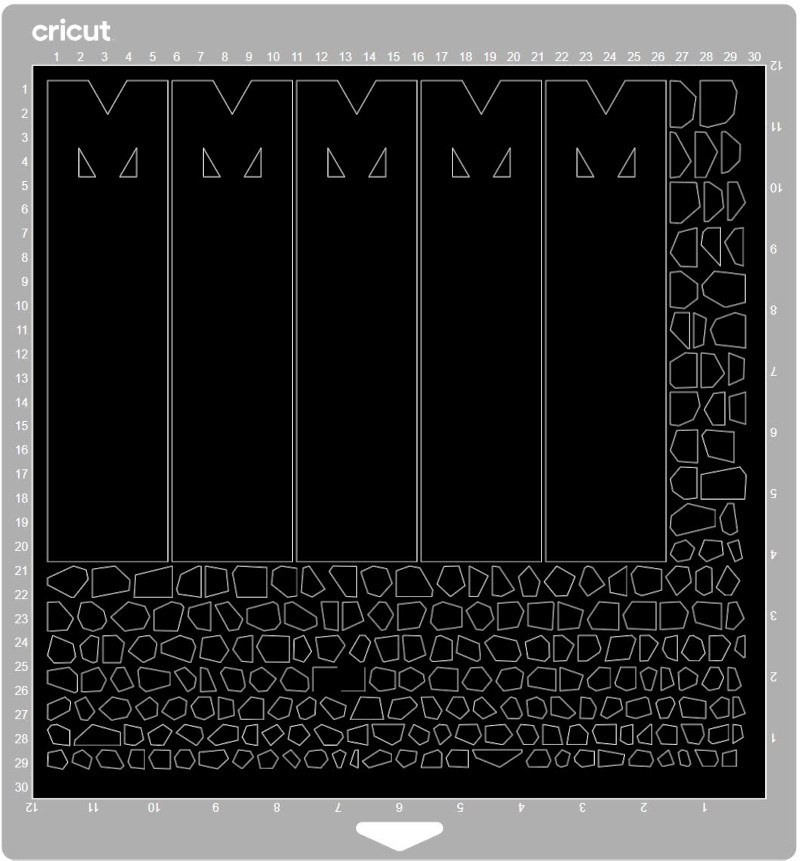
Another aggressively bad workflow issue is that even when using an SVG Group element to (obviously) group shapes of your design into a unit - the cricut insists that you select all your elements and “attach” them so that they remain where you intended them to be. If you don’t - cricut will disassemble your design into a jumble of individual shapes and place them top left on the cut page. Who would want this?!
Here’s how it ends up if you don’t “attach”:
Doing the above for my plot-and-cut back design I put my printed page on to a cut mat, prepare the machine, then after I’ve gone through the ad-laden process to upload the design, I need to instruct the software to attach, and what to cut and what to plot. That involves:
- 1 select all
- 1 attach
- 1 element delete
- 5 expand groups
- 5 selects
- 5 “pen” choices
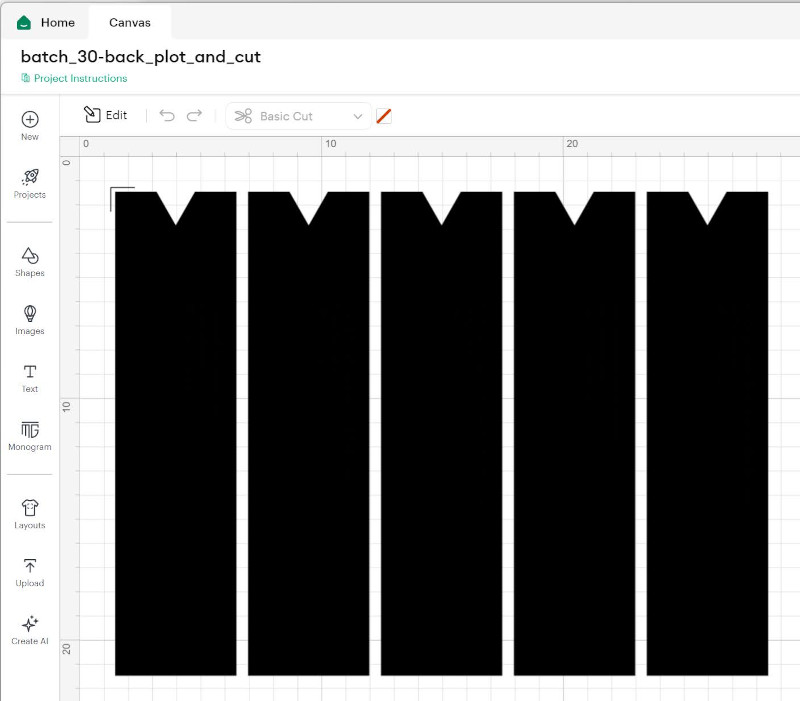
18 actions, and these actions have to be done in the “layers” sidebar, because the cut operation makes the entire shape black, thus obscuring all the elements inside, which are the ones I need to select to change to “pen” operations.
Here’s how it looks. Note that there’s pen plotted text inside each of those black shapes - not so easy to see and manipulate this way.
Scalable Fails
The Cricut design studio’s poor support for the Scalable Vector Graphics (SVG) standard meant I often implemented a feature, which previews fine in Inkscape or the browser, but which doesn’t display remotely correctly in the Cricut software. The support for SVG transforms is minimal for example.
The Design Studio interprets SVGs differently to both Firefox and Inkscape, which I would argue is pretty good evidence that it misinterprets SVGs.
The most frustrating incompatabilities I only found out about when performing the cut itself. Thick lines that look right on screen, but instead become a single thin cut, filled rectangles that become an outline, lines that get drawn twice and thus too thick, shapes that are just missing, etc.
QR code rectangles
Using filled polygon shapes did not work to plot the QR code the way I wanted. The Cricut software did not attempt to fill, as instructed - instead it would just draw the outlines. As it was drawing on the border of each pixel square, it was also enlarging the squares by half the width of the pen - making the black squares too large, and the white ones too small. This made the QR code not scan.
I tried a few different SVG approaches, none actually got cut as displayed by the Cricut.
So now I have a layer that is printed on a regular printer instead. Only the writing itself is pen plotted. The crispness of the print works out much better for QR codes anyway.
The tradeoff for these crisp QR codes was a major battle lining up the printed shapes and the plotted/cut shapes.
Cricut margins
The Cricut has a built in margin that it does not show to you in the main layout page. It appears only on the mat page, and it’s not specified how large it is! It’s 6.3mm (1/4 inch).
This only matters when both printing and cutting a design on the same page. Since I do - I deal with this in the bundler software - it is now aware that the margins have to be adjusted based on whether the page being generated will be cut or printed (as the regular laser printer I use doesn’t arbitrarily insert 6.3mm offsets without telling me).
This is already super bad, but here’s the worst part. The 0,0 on the cutting mat is at a different place vertically if the mat is turned to have the inch measurements up, or the cm measurements up! The top border of the cutting mat is literally a different size depending on which way up it’s turned! This means that if you calibrate the cricut with the mat one side up - you cannot switch it round!
This is entirely non-obvious, and it caused a whole bunch of failed cuts and head scratching until I got out the calipers and measured it myself on a last-ditch hunch before I defenestrated the Cricut.
Cricut scaling
The Cricut does not understand mm units properly it seems. For some reason, inserting registration marks where the A4 page corners are is key to making the Cricut Design Studio size my cuts correctly.
The registration marks are also essential as having them is the only way to get the design to be placed at a specific place on the A4 page rather than get forced to top left. The precise alignment these spacing registration marks give me is critical as the back design gets cut on a page that already has printed elements on it - and if the cuts and printed elements are misaligned the whole design looks terrible.
The scaling also only works correctly with a very specific set of units, SVG view boxes etc. It took a lot of trial and error to find a combination that the Cricut Design Studio would obey and cut my A4 design to the correct 297x210mm size.
You also need to find the calibration feature in the Design Studio software for this to work at all. It’s really not obvious where to find this critical feature. It’s hidden deep in the settings! It’s yet another Cricut Design Studio misfeature which is enough to drive one mad.
The Cricut is a device that outputs physical items - not understanding mm units right is pretty unforgivable.
Cricut Fonts
I turn our text from fonts to curves, because the Cricut design studio doesn’t understand how to load external fonts from SVGs. Even after making the font available to other software locally (like Inkscape), the Cricut software wouldn’t let me use it (this is something so basic I feel it should work, but it didn’t work for me).
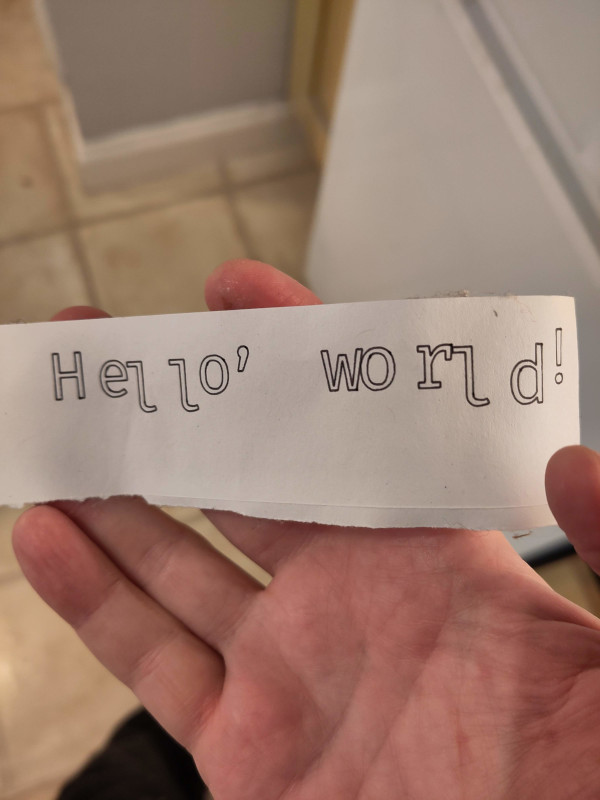
It turns out that generating curves from font data is kinda tricky and took me a few tries. There’s a lot more involved than I first thought. My first try shows all the things I didn’t know about, like text layout, kerning etc. Behold, my wonderfully wonky first attempt that the Cricut would actually plot:
I understand that turning fonts to paths is quite common when working with SVG. Perhaps I can’t blame the Cricut Design Studio too hard here, but I’m going to at least throw a little blame its way. Especially as it seems the Cricut folks are extremely keen to try to sell you fonts exclusively for their Design Studio.
Consumables
Pens will run dry, cutting mats will stop being sticky, and blades will become dull.
Blades
Cricut sells a single fine point blade for £11.99. You can buy 40 third party blades for £5.99 (£0.15/count). That’s right - Cricut charges you 80 times more. Having used both, I can’t tell a difference in their sharpness or longevity.
Selling consumables for at least an 80x markup makes me feel like Cricut’s only aim is to wring money out of me.
Pens
A pack of 10 Stabilo Point 88 pens retail for £6.95 (so ca £0.70/count). Cricut will charge you £14.79 for five pens (£2.96/count). That’s 4.2x more than a nice name-brand equivalent. Of course you have to buy an adapter to use the Stabilo pens, because Cricut’s given their own pens a unique profile, presumably to try to lock you into to their own exorbitant ecosystem of supplies.
I highly recommend you buy the adapter.
Cricut steals your time and wants your money
The Cricut Design Studio fights you every step of the way, and the Cricut company directs all their effort trying to charge you at every opportunity.
If you’re in the market for a vinyl cutter, or pen plotter - look for one that isn’t made by Cricut - you’ll save yourself frustration and money.
I don’t feel like a Cricut owner, I feel like a Cricut revenue stream.